
Design Connected Gamma Conversion Tool v.1.00
DC Gamma Tool currently supports Design Connected 3d models in 3ds Max format with Vray materials only. It is especially designed to work with our 3d files and their materials for achieving the best results in Linear Workflow.
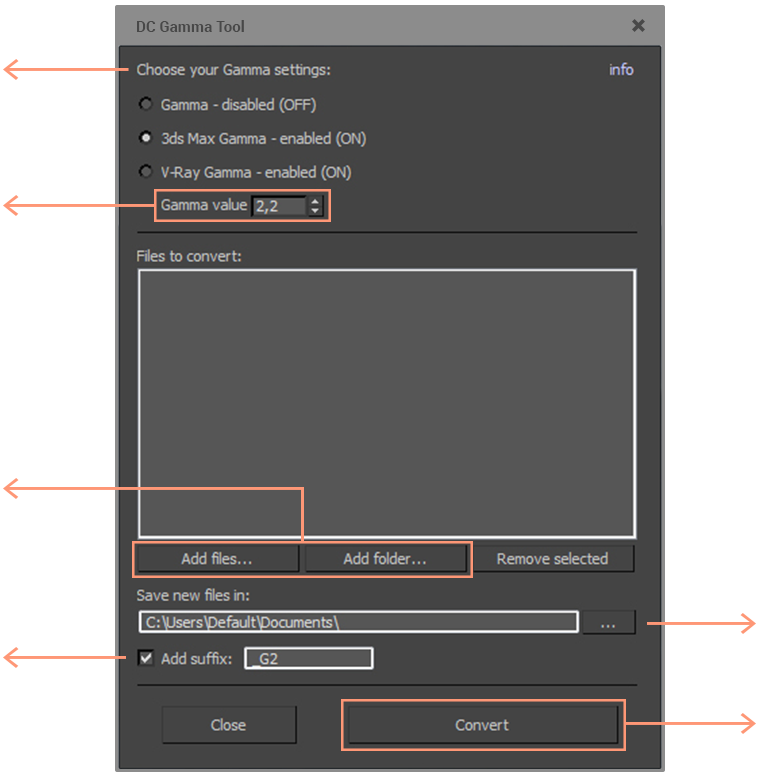
Choose the setting which applies to your workflow and render studios
You can change the Gamma value if needed. By default
the Gamma value is set to the industry standard value =
2,2
Add Design Connected 3D models in .Max file format or
a whole folder, containing Design Connected 3D models
in .Max file format to convert
Add suffix to the name of the converted files if you need to easily distinguish them from the original not converted ones
How to use
Extract the file DC_GammaTool_v1.00.ms from the archive, then drag and drop it into the viewport area of your 3DS Max Software. A window opens, where you can choose the options you need and convert the Design Connected files for your workflow.
Choose a folder for your converted Design Connected 3D model files
Convert all the added .Max files
DC material
- Diffuse / Fog Colors
- Diffuse / Fog Bitmaps
- Bitmaps used to define the Physical characteristics of the material (Bitmaps used in Reflection, Bump, Displacement, etc. slots)
Autodesk 3DS Max Gamma - Enabled
Standard values: Bitmap Files Input Gamma = 2,2
Bitmap Files Output Gamma = 2,2
DC Gamma Tool Material Corrections
Inverse Gamma Applied
No correction
Gamma Applied
DC material
- Diffuse / Fog Colors
- Diffuse / Fog Bitmaps
- Bitmaps used to define the Physical characteristics of the material (Bitmaps used in Reflection, Bump, Displacement, etc. slots)
V-Ray gamma - enabled
Standard values: Gamma = 2,2
Color mapping and Gamma - Enabled
DC Gamma Tool Material Corrections
Inverse Gamma Applied
Inverse Gamma Applied
No correction
DC material
- Diffuse / Fog Colors
- Diffuse / Fog Bitmaps
- Bitmaps used to define the Physical characteristics of the material (Bitmaps used in Reflection, Bump, Displacement, etc. slots)